Log in as a user
First time login
To get started with NOA Talent Portal, log in to https://admin.noatalentportal.nl with the login details you received from us via a welcome email (figure 1). Your username is your email address and the password as stated in the email is a temporary password. After entering your username and temporary password, click on 'Log in'. You will then be asked to create a new password of your own (figure 2). First enter the temporary password again and then enter your own new password twice and click on 'Continue'. This new password is now the password you can use to log in.
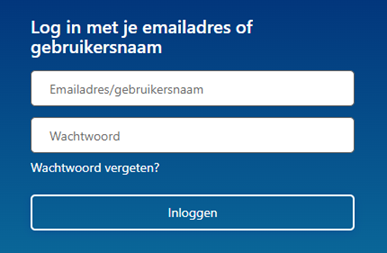
Figure 1: Login page NOA Talent Portal
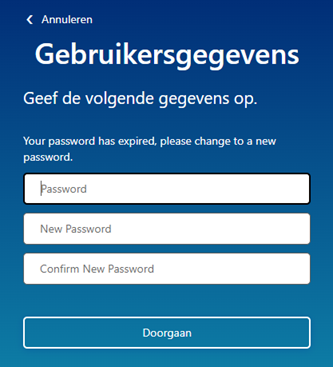
Figure 2: Setting New Password
Set up 2-factor authentication
After creating your password, you will be guided through setting up 2-factor authentication. For 2-factor authentication, you need an authenticator app on your smartphone, such as Microsoft Authenticator or Google Authenticator. From the authenticator app on your smartphone, scan the QR code shown on the screen (figure 3), a 6-digit code will now appear in your authenticator app. Then click on 'Verify', enter the code on the next page and then click on 'Verify' again (Figure 4). If you have a new smartphone, the 2-factor authentication must be set up again. Please contact NOA so that we can reset the 2-factor authentication for you.
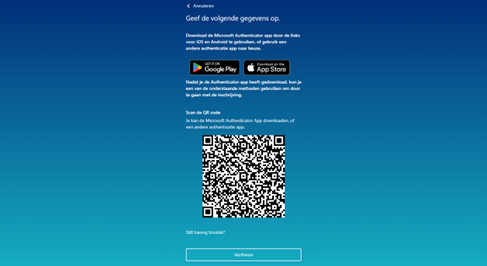
Figure 3: QR code for first time setup 2-factor authentication

Figure 4: Input field
You are now logged in to your own personal user account. The next time you log in, you will use your new password, and for the 2-factor authentication you only need to enter the code from the app from now on.
Forgot password
If you do not remember your password, you can reset your password via the 'Forgot password?' button (see figure 1). After clicking on the 'Forgot password' button, you will be asked to enter your email address (figure 5). Then click on 'Send verification code'. You will now receive an email from Microsoft on behalf of NOA, containing a 6-digit code. Enter this code and click on the 'Verify code' button (Figure 6). Then click on 'Continue' (Figure 7). You can now enter a new password, repeat this password and click on 'Continue' again (figure 8). Then enter the 2-factor authentication code and you are logged in again. From now on, use this new password.
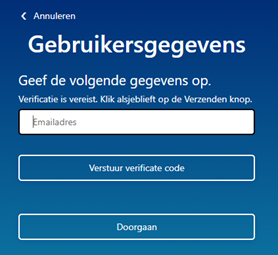
Figure 5: Verify email address
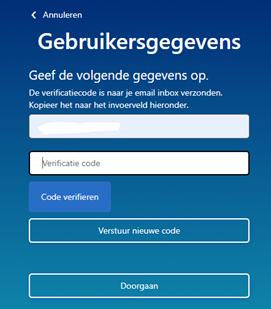
Figure 6: Entering and verifying a code
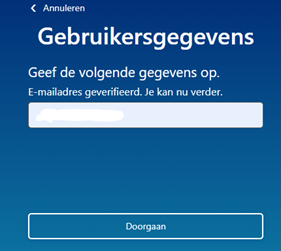
Figure 7: Email address has been verified
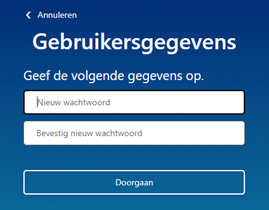
Figure 8: Entering a new password

